It is the last plugin you put on a bus when the mix has to survive a phone, a club system, a broadcast fold, or any other mono playback. It is also the plugin you use while you are still in stereo, to see the problem before you leave the studio.
How to read this guide
Do A first check once with a mix you know is wide. Then use the headings as a reference. Tips on the rail explains any control when you hover it.
The displays are part of the instrument. Loss, Saved, and Fixing are there so you do not have to guess whether mono got better.
People also ask
What is a mono compatibility plugin?
A plugin that shows, and can repair, the level a stereo mix loses when left and right are added together. Paraflex Mono Optimizer is that tool.
Why does my mix disappear in mono?
Left and right are cancelling. A polarity flip, a very wide low end, or a short Haas delay are the usual causes. Width alone does not bring the cancelled sound back.
What is the difference between Rescue and Image?
Rescue is how much cancelled energy is folded back. Image is how much of the original stereo width stays around that repair.
Where should I put Mono Optimizer?
Last on the bus that has to survive a phone, a club, or a broadcast fold. Listen in Mono before you bounce.
What is Haas repair?
An optional fix for a short delay between left and right that combs when the mix is summed. Leave it off unless you hear that problem.
What it is for
A stereo mix is two channels. A mono fold adds them together. Whatever is equal in both channels gets louder. Whatever is opposite cancels and gets quieter or vanishes. Width that was made by flipping polarity, by a very wide stereo effect, or by a short delay between the channels is the usual cause.
Turning a width knob down does not bring the cancelled sound back. The sound is still opposite; it is only quieter. Mono Optimizer is the process that makes the fold survive. Image is what you keep of the picture after that.
Use it on:
- A mix bus or a stem bus that will be summed to mono somewhere downstream.
- A music bed for picture, a club print, a broadcast print, or a phone speaker check.
- A stereo effect return that collapses when you hit the host’s mono button.
- A track with a short left/right delay (a Haas widen) that sounds phased in mono. Haas repair is the specific switch for that case.
Leave it off a source that is already mono. There is nothing to rescue, and the displays will sit near zero loss.
What you need
| macOS | macOS 12 or later, Apple silicon or Intel |
| Windows | 64-bit Windows 10 or later |
| Sound | A stereo source. Mono in, mono out, with nothing to do |
| Formats | This release: VST3 on Windows and macOS. Audio Unit and AAX are not in this release. |
The plugin has a delay, and it tells the host what that delay is. Leave plugin delay compensation on so the rest of the session stays aligned. Bypass and the optimisation bypass keep that same delay, so comparisons do not shift the picture.
The footer shows the version and the format. This release opens as VST3. Audio Unit and AAX are not in the installer yet. Close the host before you install or update.
Install
macOS
- Double-click the installer package.
- If macOS says it cannot check the installer, close that warning, open System Settings → Privacy & Security, choose Open Anyway, and enter your password.
- Finish the installer. It needs an administrator password.
What it places:
- VST3:
/Library/Audio/Plug-Ins/VST3/Paraflex Audio/Paraflex Mono Optimizer.vst3 - Audio Unit:
/Library/Audio/Plug-Ins/Components/Paraflex Mono Optimizer.component - AAX, when the installer includes it:
/Library/Application Support/Avid/Audio/Plug-Ins/
If a host says the plugin is damaged, quit the host and clear the quarantine:
xattr -dr com.apple.quarantine "/Library/Audio/Plug-Ins/VST3/Paraflex Audio"
xattr -dr com.apple.quarantine "/Library/Audio/Plug-Ins/Components"
Windows
Run the setup and accept the license.
- VST3:
C:\Program Files\Common Files\VST3\Paraflex Mono Optimizer.vst3 - AAX, when included:
C:\Program Files\Common Files\Avid\Audio\Plug-Ins\
The current installer is the plugin. It does not add a separate standalone application. If an old standalone was left from an earlier install, the setup removes it.
If the window opens as a plain panel of controls, run the setup again and restart the host.
After installing
Rescan. Logic Pro: Settings → Plug-in Manager → Reset & Rescan Audio Units. Ableton Live, Reaper, Cubase, Bitwig, and Studio One load the VST3. Pro Tools loads AAX only, when that component was installed.
Two entries in the list usually mean a copy in your user plugin folder as well as the system folder. Keep /Library/Audio/Plug-Ins/... on macOS, remove the extra under your home Library, and rescan.
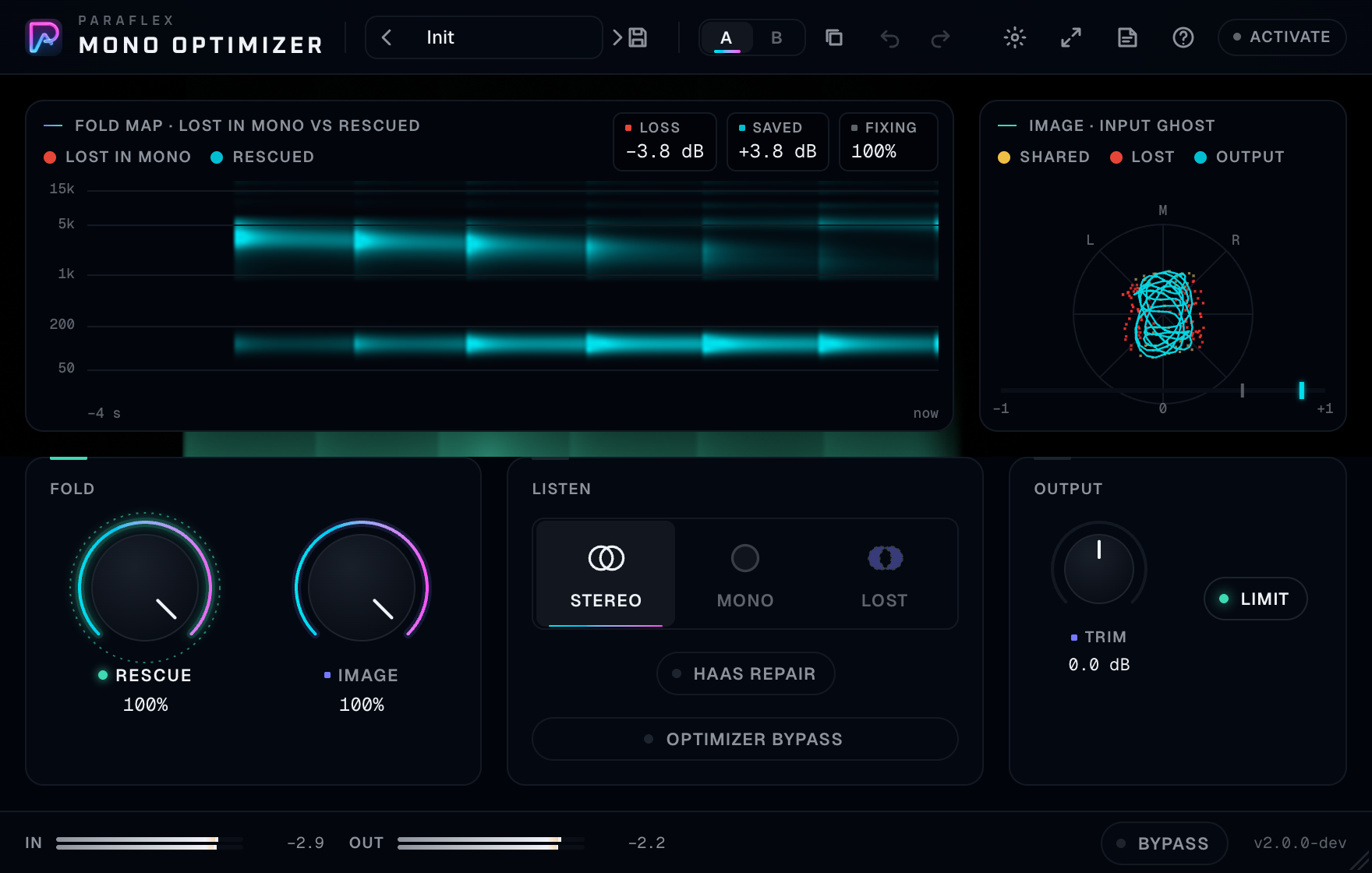
Mono Optimizer in an effect slot on a mix bus.
License
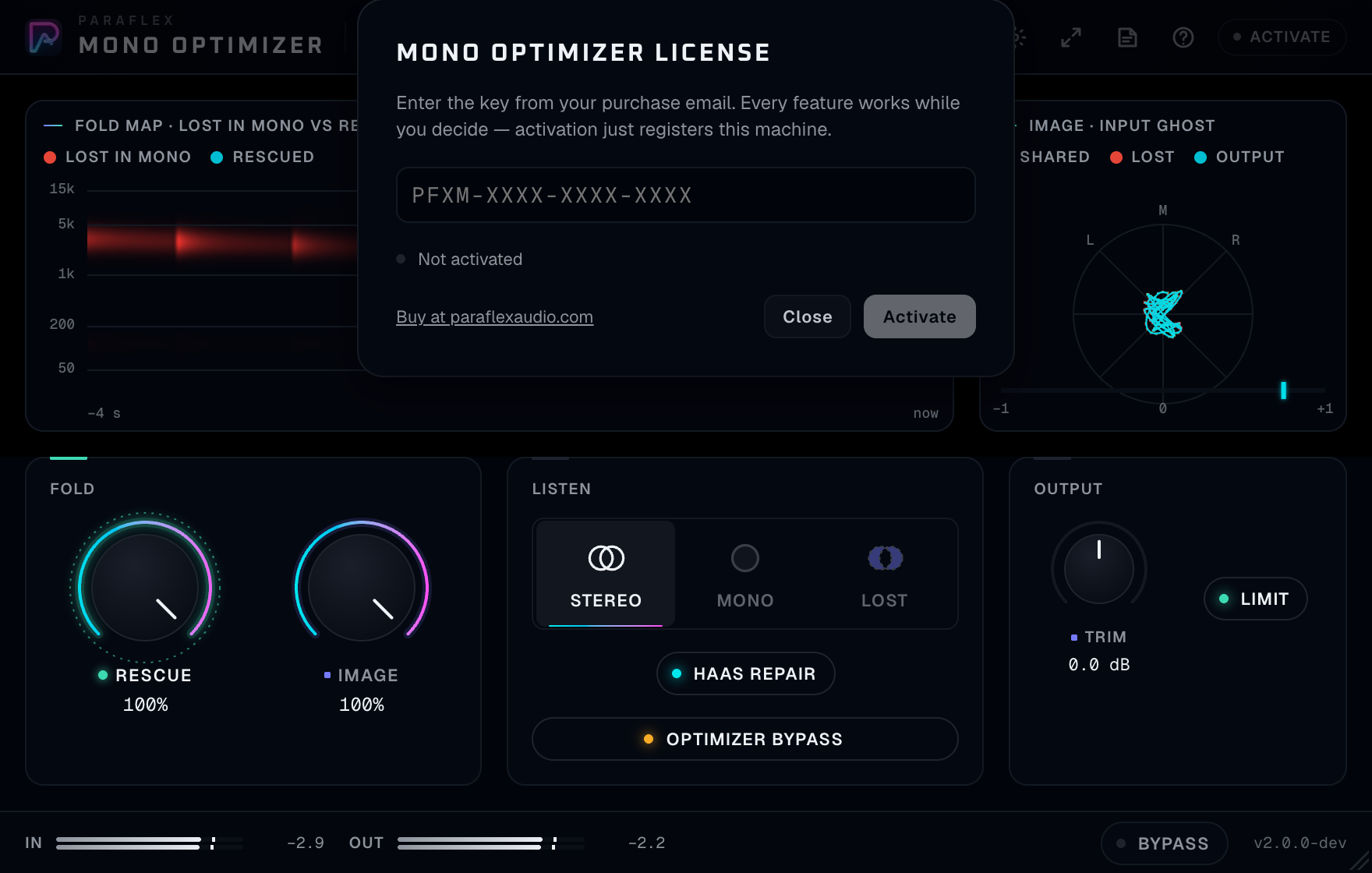
PFXM-XXXX-XXXX-XXXX.Click Activate on the rail.
- The key looks like
PFXM-XXXX-XXXX-XXXX. - Until this computer is activated, Mono Optimizer stays silent, including when Bypass is on. Activation registers this computer and the sound comes back at the same reported latency.
- One key on one computer at a time. Deactivate on the old machine first.
- After a successful activation the plugin keeps working away from the internet until the date in that activation, and then for seven more days. The sheet shows how many days remain. When that period ends, Mono Optimizer is silent until you connect and open it.
- Buy at paraflexaudio.com is on the sheet. The purchase, tax, and refund are handled there. Questions about the plugin go to support@paraflexaudio.com.
The chip reads Licensed when this machine is activated.
A first check
Use a mix that you already know sounds wide, or a stereo chorus, or anything that uses polarity or a short delay for width.
- Insert Mono Optimizer last on that bus.
- Leave Rescue and Image where they start (both fully up). Limit stays on. Haas repair stays off.
- Press play. Read Loss. A number near zero means this material already folds cleanly. A clearly negative number means mono is throwing level away.
- Click the middle Listen tile, Mono. You are now hearing the fold. Click the left tile, Stereo, and back. The thing that vanishes in Mono and returns in Stereo is the problem.
- Click the right tile, Lost. You hear only what the fold would discard. This can be quiet. Raise your monitors for a moment, then put them back. If Lost is almost silent, there is little to rescue.
- Return to Stereo for a normal listen, or stay on Mono if you are delivering mono.
- If Loss was badly negative and Saved is clearly positive while Rescue is up, the processor is doing the job. If you want a narrower, more centred result, lower Image. If you want less intervention, lower Rescue.
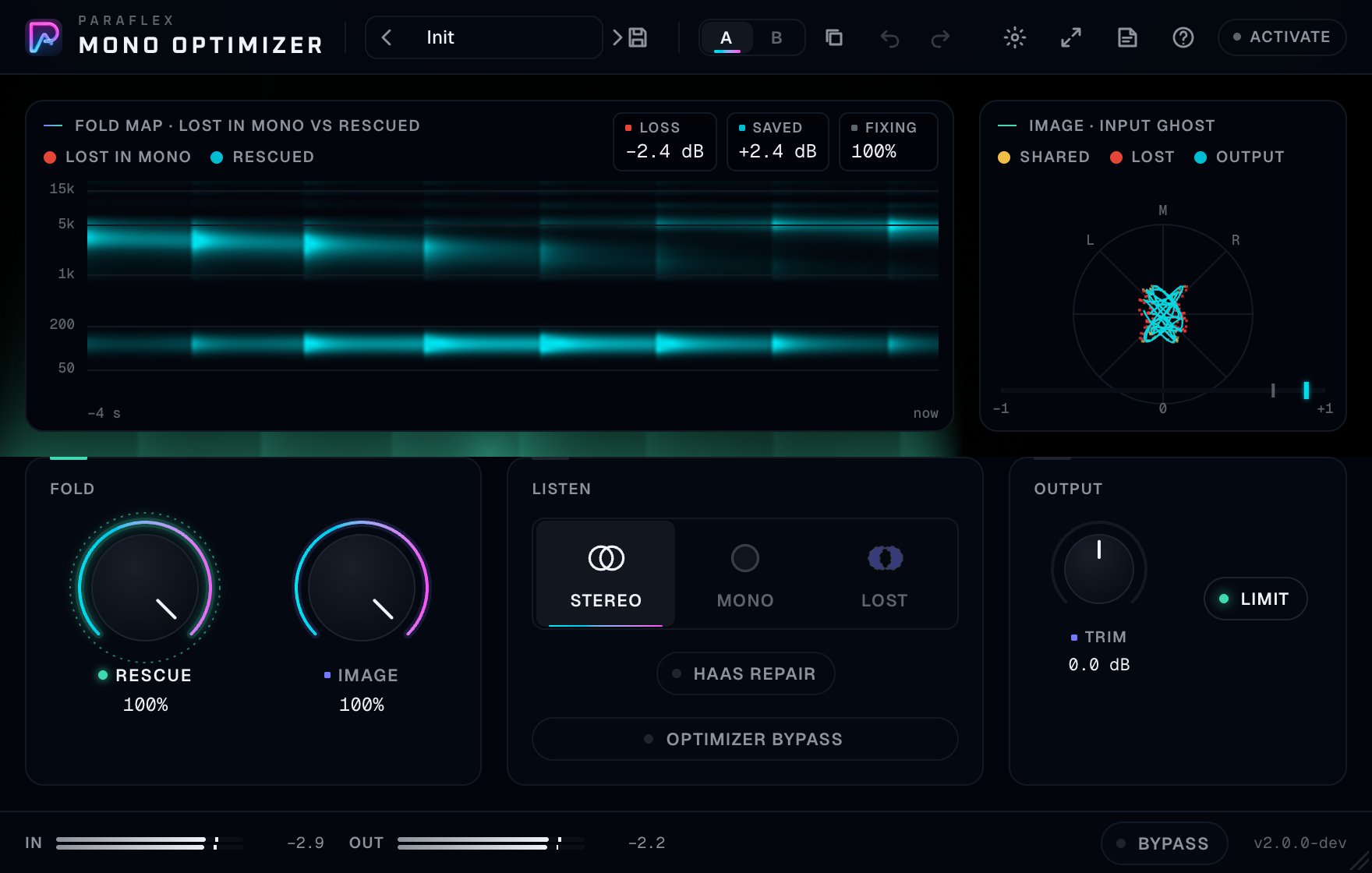
Do not judge the plugin with Rescue at zero and then conclude the mix is fine in mono. Rescue at zero is you asking for no repair. The Loss number is still honest about the input.
What the numbers mean

| Readout | Meaning |
|---|---|
| Loss | How much level the untreated stereo gives up in a mono fold, compared with a fold where left and right no longer cancel. Zero is a clean fold. A negative number is missing level. Deeper negative is a worse cancellation |
| Saved | How much louder the mono fold is after processing, compared with the untreated input. Zero means the fold did not gain level. A positive number is recovered level |
| Fixing | The share of the risky energy that is being rescued right now, as a percent |
Loss describes the input. It keeps updating even when you bypass the optimisation, so you can see the problem while you A/B the repair. Saved describes what the output gained in the fold. Fixing is the live ratio of “being rescued” to “was at risk.”
A healthy wide mix can show a small Loss. A polarity-flipped side, a very wide low end, or a Haas delay can show a deep Loss. You do not need to chase Loss to exactly zero on every record. You need the mono speaker to contain the vocal, the bass, and the lead lines. The Lost listen is how you check which of those are the ones in danger.
The fold map
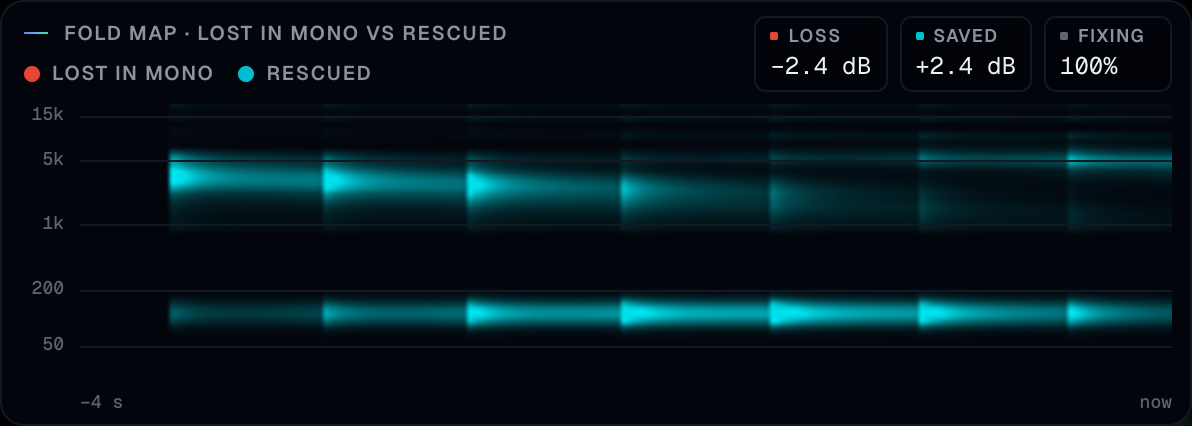
The map is frequency, low at the bottom to high at the top, scrolling in time. The right edge is now. The left edge is about four seconds ago.
- One colour is energy that would still cancel in mono.
- The other colour is energy the processor is rescuing.
A bright band at the bottom means the low end is the problem, which is the dangerous one, because bass that cancels is bass the club does not play. A bright band in the highs is often a stereo reverb or a widener on cymbals. You may choose to rescue that less, by lowering Rescue, or to let Image keep the width if the mono vocal and bass are already safe.
The map is a history, so a one-bar effect shows up as a stripe and then scrolls away. Watch it while the chorus hits. A static screenshot of an idle mix will look empty, and that only means the last few seconds did not contain a cancellation.
The image display
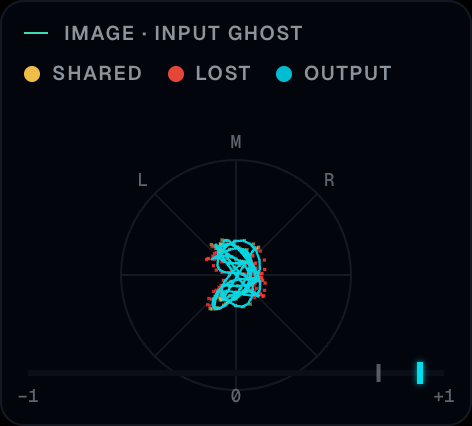
This is a goniometer. Straight up the centre is the middle: left and right equal, which is what mono is made of. Toward the lower left and lower right is width. A flat horizontal cloud is the extreme, the kind of signal that cancels when you fold.
- The ghost is the input.
- The solid trace is the output.
If Rescue is working, the solid trace stands taller through the middle than the ghost did, while Image decides whether the sides remain.
Under the circle is correlation, from −1 to +1.
| Mark | Meaning |
|---|---|
| +1 | Left and right match. A mono fold reinforces them |
| 0 | Left and right are unrelated. The fold keeps the middle and the sides stay sides |
| −1 | Left and right are opposite. A mono fold cancels them |
The dim marker is the input. The bright marker is the output. You want the bright marker to the right of the dim one when the input was negative or weakly correlated. You do not need to pin it at +1. A record with real stereo will sit somewhere positive and still have width. Image at full is allowed to leave some of that width in place, including a little of the out-of-phase picture, because a total collapse to dual-mono is what Image at zero is for.
Rescue and Image
Rescue
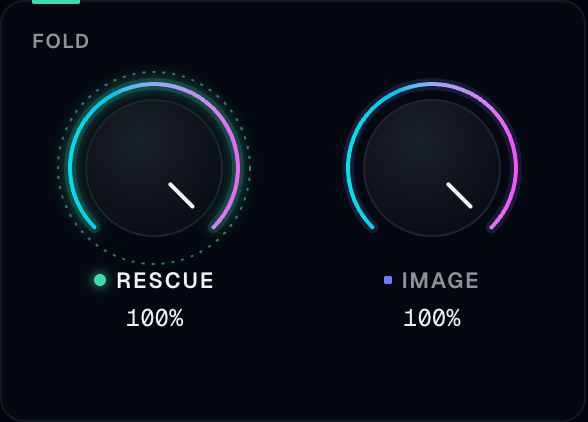
Rescue is how much of the stereo energy that would cancel in mono is folded back safely. It starts at full.
- Full is the normal setting. The processor does the rescue it is willing to do on this material.
- Lower leaves more of the cancellation alone. Use this when the Lost listen is mostly reverb and sparkle you are happy to lose in mono, and you want the repair to stay subtle in stereo.
- Zero is no rescue. The fold behaves like the untreated mix. Loss still reads the problem. This is your “amount” control, not a bypass of the whole plugin.
Rescue is not a width knob. Width alone cannot restore a fold. If you lower Rescue and the mono vocal gets thinner again, that is the cancellation returning. Raise Rescue.
Image
Image is how much of the original width is kept around the parts that were rescued. It starts at full.
- Full keeps as much of the stereo picture as the rescue allows. Material that was strongly inverted still folds back toward a solid mono sum, and a little width can remain where it is safe to keep.
- Lower pulls the rescued sound toward the centre.
- Zero is the most centred result: the repair lines the channels up so the fold is as single-image as this processor makes it.
Set Rescue for “how much of the missing mono comes back.” Set Image for “how wide the stereo still feels after that.” Check both listens. Stereo tells you whether you damaged a beautiful width. Mono tells you whether the song is still there. Lost tells you what you are still willing to abandon.
Club Safe, Wide Keep, and Broadcast Mono in the factory list are three points on this exact trade.
| Preset | Category | The trade |
|---|---|---|
| Club Safe | Mix Bus | Full rescue, Image a little under full. A club fold that does not throw the width away entirely |
| Wide Keep | Mix Bus | Rescue eased off, Image full. More of the original picture, less intervention |
| Broadcast Mono | Delivery | Full rescue, Image well toward the centre, Limit on. A fold that is meant to be mono-first |
| Haas Fix | Repair | Rescue high and Haas repair on. For width that came from a short delay |
Listen
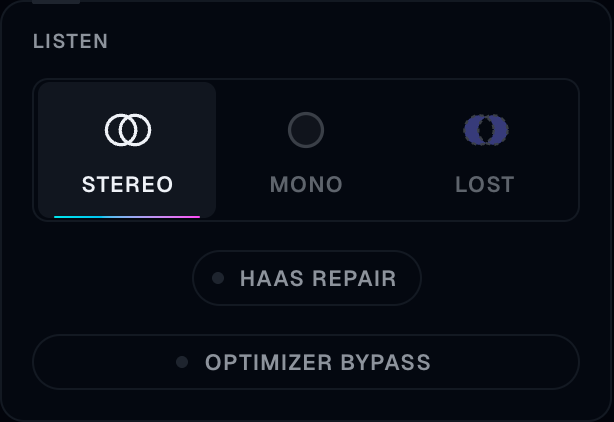
| Tile | What you hear |
|---|---|
| Stereo | The plugin output in stereo. This is what you print if the delivery is stereo |
| Mono | The output summed to mono, the dumb fold a phone or a club sum will do |
| Lost | Only the part of the signal that the mono fold discards. The solo of the problem |
Listen is monitoring. It does not change the repair amount. Presets, A/B, and undo leave the Listen mode where you put it, so loading Broadcast Mono does not kick you out of a Mono check, and loading anything else does not either.
Use Listen in this order when you are unsure:
- Lost, quietly, to learn what is at risk. If you hear the lead vocal in Lost, you have a real problem. If you hear only distant reverb, you may not.
- Mono, to hear the fold as an audience will.
- Stereo, to confirm you can live with the picture.
The tiles ease from one to the next so the switch itself is not a click.
Lost on an already-safe mix is nearly silence. That is a good result, not a broken solo.
Haas repair
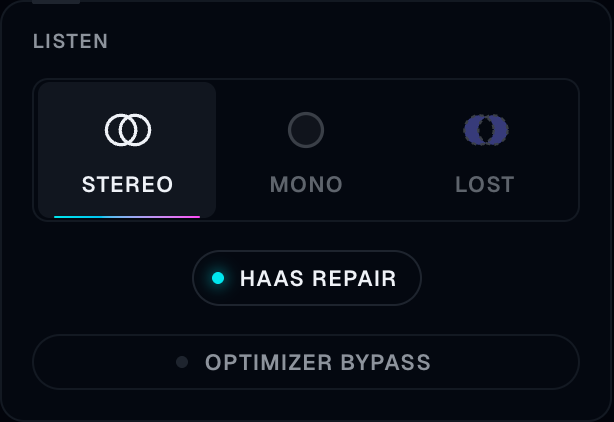
A Haas widen is a short delay between left and right, often under a few tens of milliseconds. In stereo it reads as width and direction. In mono the delay becomes a comb: some notes hollow out, some notes spike, and the tone depends on pitch.
Haas repair is off by default, and it should stay off unless you are hearing that problem.
- Off. Short delays that make width are left alone. The rest of the processor still rescues polarity and other cancellation. A deliberate Haas image stays a Haas image.
- Repair. The processor lines up those short inter-channel delays so the mono fold stops combing. Stereo width that depended on the delay will pull inward. That is the repair.
Turn it on, listen in Mono, then in Stereo. If Stereo got worse and Mono only got a little better, turn it off. The Haas Fix preset turns it on with Rescue high so you can audition the idea in one click. Your Listen mode stays whatever it was.
Do not enable Haas repair “just in case” on a whole mix. Real room microphones and real double-tracked parts are not a Haas effect. Repair is for the artificial short delay.
Trim and Limit
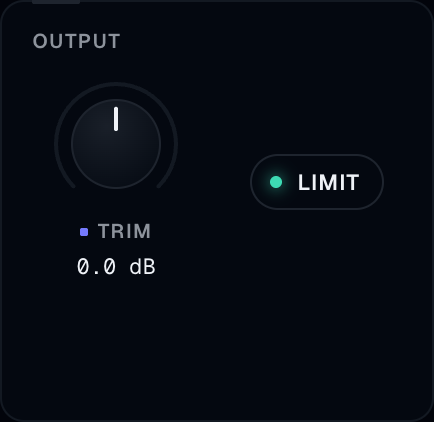
Trim is the output level after the fold, from −12 dB to +12 dB, starting at 0. Rescue can make the mono sum louder because energy that was cancelling is now adding. Stereo can also shift a little in level. Trim is how you put the bus back where your master expects it. Do this after Rescue and Image, not before, or you will chase the fader twice.
Limit is a transparent safety limiter at the top of the signal, a tenth of a decibel under full scale, on by default. It is there so a rescued peak does not clip the next plugin or the file. It is not a loudness maximiser. If you see the sound getting small and flat, the input is already very hot and the limiter is working too often. Lower Trim, or lower the level into Mono Optimizer, until Limit is only catching the stray peak.
Broadcast Mono leaves Limit on. You can turn it off when something downstream is your only ceiling and you want this plugin to stay linear. For a mix bus that leaves the computer, leave Limit on.
Optimizer bypass and Bypass
These two are easy to confuse. They are different, and both are useful.

Optimizer bypass
The pill is labelled Optimizer bypass. It sits in the Listen group, under Haas repair. It bypasses only the optimisation: Rescue, Haas repair, Trim, and Limit. Monitoring stays live.
- Listen Mono still folds, so you hear the untreated mono sum.
- Listen Lost still plays what the input loses.
- The meters keep running.
- The delay stays the same, so the A/B does not slip in time.
- It is saved with the session. Presets do not clear it or set it. Older sessions that were saved before this control existed open with processing on.
Use it as the honest A/B: “mono of the mix” against “mono of the mix after rescue,” without touching Listen and without a timing jump.
Bypass
Bypass is the whole plugin eased out, still time-aligned with the processed path. The host’s own plugin bypass does the same kind of aligned bypass. Use it when you want the instance out of the printing path. Use Optimizer bypass when you want to compare the processing while you keep listening in Mono or Lost.
Presets leave both Bypass and Optimizer bypass alone, and they leave Listen alone.
The Paraflex window
Rail

| Control | What it does |
|---|---|
| Preset arrows | Previous and next preset |
| Preset name | Browser. A dot means you edited the preset |
| Save | Name and category. Enter saves, Escape cancels |
| A / B | Two setups. Instant and undoable |
| Copy | Copies the sounding side onto the other |
| Undo / Redo | Moves you made in this window |
| Aura | Full, Subtle, or Off. Glow only. The audio does not change |
| Size | S 80%, M 100%, L 125%, XL 150% |
| Guide | Opens this guide on paraflexaudio.com |
| Tips | Hover explanations. Off until you turn them on |
| License | Activation |
The first time you open Mono Optimizer, a short walkthrough points at the fold map, the image display, and Listen, then at Guide and Tips. Skip it or step through it. It does not change the sound, and it does not come back on this computer.
A and B are ideal for Image. Copy a full-rescue setting to the other side, lower Image, switch back and forth in Mono and then in Stereo. Undo covers the moves. The song stores the sounding setup, the preset name, and whether it is dirty. Save a preset if you need the other side tomorrow.
There is no wet lock because there is no separate dry/wet mix. Rescue is the amount of processing. Image is the stereo result of that processing.
Knobs
Drag up or right to increase. Shift or Ctrl is fine. Scroll nudges. Double-click or Option / Alt-click resets. Click the number to type. Rescue and Image are percents. Trim is decibels and can be negative. The value card waits briefly, then tracks quickly between knobs, and stays while you drag.
Footer meters
In and Out are peak levels in dBFS. Click a number to clear the peak and the clip hold. If Out is hotter than In after a heavy rescue, that is recovered energy, not a mistake. Use Trim.
If your system asks for reduced motion, the window calms its animation. The audio is unchanged. Aura Off is the in-plugin way to quiet the glow.
Signal path, in listening order
- The stereo input is metered and analysed. Loss and the ghost image come from this.
- Rescue folds cancelling energy back, by the amount you set.
- Image keeps or centres the width around that repair.
- Haas repair, if on, lines up short inter-channel delays.
- Trim sets level.
- Limit, if on, catches peaks at the ceiling.
- Listen chooses stereo, a mono fold, or the lost component. This listen is after the processing, except that Optimizer bypass swaps the processed path for the aligned dry path before the listen, so Mono and Lost still mean something.
- The output is metered, at the same delay either way.
Full Bypass eases to the aligned original and is what you want in the printed file when the plugin should contribute nothing.
Working habits
Put it last on the bus you are judging. Anything after it, especially another widener, an imager, or a stereo reverb, can undo the fold. A limiter after it is fine if you would rather limit there. Turn this Limit off in that case so you are not limiting twice.
Compensation stays on. The plugin delays the audio by the length of its analysis. The host lines the track up. Bypass does not remove that delay, on purpose, so the A/B stays sample-aligned for as long as the instance is in the chain. If you need the delay gone, remove the plugin.
Check Lost before you rescue. If the vocal is in the Lost solo, Rescue stays high. If Lost is only a stereo room, you can lower Rescue or keep Image high and accept that the room will be quieter in mono. Both are professional choices. Leaving a lead vocal in the cancellation is not.
Bass and voice first. Scroll the fold map with your eyes at the bottom and the middle. High-frequency width is the cheapest thing to give up. Low-frequency cancellation is the expensive one.
Image is the stereo cost. Full Image is the default because a stereo delivery should stay stereo. Lower Image for a mono delivery, a centre-channel-heavy broadcast, or a mix that was too wide to translate. Do the final Image move while listening in Stereo, then confirm in Mono that the vocal did not leave.
Haas repair is a diagnosis you confirm, not a default. Toggle it in Mono. If a guitar or a vocal stops combing, leave it on for that bus. If the picture only gets narrower and the mono was already fine, leave it off.
Optimizer bypass is the comparison. Bypass is the removal. They are different pills. Optimizer bypass is in the Listen group. Bypass is in the footer. Printing a mix with Optimizer bypass on will print the untreated audio, delayed, through whatever Listen mode is selected. Look at the pill before you bounce. It is saved with the session so a bounce is repeatable, which also means a forgotten pill is repeatable too.
Listen mode is saved too. A session left on Mono will play mono the next time you open it. That is what you want during a mono pass and not what you want when you bounce a stereo master. Look at the tiles before you export.
Presets will not save you from the wrong listen mode. They are forbidden from changing Listen and Optimizer bypass, so your monitoring survives a preset click. The sounding rescue still changes. Read the tiles.
Do not “fix” a true stereo recording of a room by forcing Image to zero. A spaced pair is supposed to be wide. Rescue at a moderate amount and Image fairly high protects the fold without turning the room into a single microphone. Lost will tell you if the centre of the ensemble is actually cancelling.
One instance on the mix bus is the usual recipe. Instances on every stem plus another on the mix will each try to rescue, and you will be listening to a stack of decisions. Prefer the mix bus, and add a stem instance only where Lost shows a particular stem is the culprit (often a bass widener or a synthesizer with an inverted side).
Compare at matched loudness. Saved existing means the fold got louder. Your ear will prefer louder. Use Trim so Stereo and the Optimize-bypass Mono check are in the same loudness neighbourhood before you decide the processing is better.
Club, broadcast, and phone are different Images, not different plugins. Save three user presets of your own once you know your show: a wide rescue, a moderate one, and a centred one. The factory four are the map.
Leave Limit on for delivery, and look at Out. A limiter that is slamming is a level problem upstream. A limiter that never moves is fine.
Recipes
Stereo master that must also play in mono
Last insert. Rescue full, Image around 80–100, Haas off unless you proved you need it, Trim so Out matches the level you had, Limit on. Listen Mono and confirm vocal and bass. Listen Stereo and confirm the chorus is still wide. Optimizer bypass in Mono to A/B the fold. Bounce with Listen on Stereo and Optimizer bypass off.
Club print
Start from Club Safe. Play the chorus. If the kick hollows in Mono, you are still cancelling in the lows: keep Rescue full and look at whether a bass stereo effect before this plugin is the real cause. Fix that upstream if you can. Image stays high enough that the system’s stereo zones still have a picture.
Phone / broadcast fold
Broadcast Mono. Then lower Image further if the delivery is literally mono. Listen on the Mono tile. Lost should not contain the vocal. Trim and Limit so the file does not clip. Bounce the Mono listen only if the file itself must be mono. If the file must be stereo that happens to fold well, bounce on the Stereo tile.
A widened guitar bus
Haas Fix, or your own settings with Haas repair on and Rescue high. Mono listen: the notes should stop whistling as they change pitch. Stereo listen: the guitar will be narrower than the Haas trick made it. If the narrowing is too much, turn Haas repair off and lower Image only a little, then listen again. Sometimes the Haas effect is the sound and the mono loss is acceptable for that stem because the vocal is safe in the middle. Lost on the full mix is the judge, not dogma.
“What is even cancelling?”
Rescue at full so the map shows rescued colour, then Optimizer bypass on, Listen Lost. You hear the problem raw. Optimizer bypass off, Listen Lost again. What remains in Lost is what you chose not to save, mostly by Image and by how cautious the rescue is on that material. Then Listen Mono and be done. Do not live in Lost while you mix the record. It is a microscope.
Common questions
Loss is near zero. Is the plugin working? The input already folds. There is little to do. You can leave the instance in place with Limit as a ceiling, or remove it if you do not want the delay. A plugin with nothing to rescue should not invent a problem.
Loss is deep and Saved stays near zero. Rescue is down, Optimizer bypass is on, or Bypass is on. Turn processing on and Rescue up. If Rescue is full and Saved is still flat, listen to Lost. You may be hearing a delay or a reverb tail the processor is treating cautiously, or the meter is looking at a quiet section. Play the loud wide section again.
Stereo sounds unchanged and I expected a dramatic effect. Image is full and the material was only partly cancelling. The dramatic version is Mono listen, or Image turned down. The plugin is supposed to be modest in stereo when Image is high. That is the feature.
Mono listen sounds louder than Stereo. A fold adds the centre together. Two equal channels become one stronger one. Trim if you are comparing unfairly. Saved being positive is the same story: recovered energy.
I turned Image down and the chorus collapsed. Image is the width. Put it back up. Use Rescue to protect the fold without giving the width away.
Haas repair made the guitars narrower and the mono problem was the bass. Turn Haas repair off. The bass problem is Rescue and whatever stereo bass plugin is earlier in the chain. Haas repair does not retune a sub.
Optimizer bypass and the sound did not go fully dry in Stereo. In Stereo, Optimizer bypass is the aligned original stereo. It should be the original. If it still sounds processed, you are hearing an earlier plugin. In Mono, Optimizer bypass is the original folded, which is exactly the “before” picture.
Bypass still sounds delayed against a copy of the track with no plugin. The aligned bypass keeps the plugin’s delay so toggling it does not shift. Remove the plugin to remove the delay. While it is inserted, leave host delay compensation on and the delay is accounted for.
A preset did not change Listen, and I wanted Broadcast Mono to force mono monitoring. Listen is yours, not the preset’s. Click the Mono tile. The preset did change Rescue, Image, and Limit.
The session opened in mono. Listen was Mono when you saved. Click Stereo before a stereo bounce.
I bounced the Lost solo. Listen was on Lost. Choose Stereo or Mono for the file you meant to deliver, and confirm Optimizer bypass is off if you want the rescue in the file.
The window shows a plain panel. Run the Windows setup again, or update macOS, and restart the host.
Pro Tools does not list it. You need the AAX from an installer that includes it, then a rescan.
It appears twice. Remove the duplicate in the user plugin folder. See Install.
Activation failed. The prefix is PFXM. One machine at a time. The sheet’s status line has the specific reason.
Does this replace a mid/side width plugin? No. A width plugin makes sides. This plugin rescues a fold. If you need more width, do that before Mono Optimizer, then look at Loss and decide how much of that width you are willing to keep with Image.
If something seems wrong
| What you notice | What to check |
|---|---|
| Nothing changes in stereo | Image is high and the mix was already safe. Use Mono listen |
| Vocal still gone in mono | Rescue down, Optimizer bypass on, or a widener after this plugin |
| Low end still gone | A stereo bass processor earlier in the chain. Rescue full. Look at the bottom of the map |
| Everything pulled to the centre | Image is low |
| Comb-filter tones in mono | Try Haas repair. If it does not help, the comb is inside one channel or is a longer delay than this repair is for |
| Clips after the plugin | Limit off and Trim hot. Limit on, or Trim down |
| Pumping or flatness | Limit working too hard. Lower the input level or Trim |
| Timing slip against other tracks | Host delay compensation off |
| Bounce is mono or “empty” | Listen tile, and Optimizer bypass |
| Old session suddenly processed | New versions open with processing on. Optimizer bypass is the A/B if you wanted the old dry fold |
Words used in this window
| Word | Meaning |
|---|---|
| Fold | Adding left and right into one mono signal |
| Loss | Level the untreated fold is missing because of cancellation |
| Saved | Level the processed fold got back, compared with the untreated fold |
| Fixing | How much of the risky energy is being rescued, in percent |
| Rescue | How much of that cancellation is folded back |
| Image | How much width remains around the rescue |
| Listen | Stereo, Mono, or Lost. Monitoring, saved with the session |
| Lost | The part a mono fold throws away |
| Haas repair | Lines up a short left/right delay so mono stops combing |
| Trim | Output level after the processing |
| Limit | Safety ceiling just under full scale |
| Optimizer bypass | Processing out, monitoring and delay still in |
| Bypass | The whole plugin eased to the aligned original |
| Correlation | Whether left and right agree (+1), ignore each other (0), or oppose (−1) |
| Goniometer | The round display. Up is the middle, the diagonals are the sides |