Overview
Alchemy is a cutting-edge synthesizer that transforms the periodic table into a musical instrument. All 118 chemical elements produce unique waveforms and sonic characteristics, organized into 8 color groups using Russell's Color System. Elements interact through chemical reactions that produce real-time audio effects — creating an unprecedented fusion of science and sound design.
Key Concept
Each of the 118 chemical elements is mapped to a unique waveform using mathematical relationships based on atomic properties and Russell's Color System. Elements are organized into 8 color groups (Purple, Black, Orange, Red, Yellow, White, Green, Blue) — each with distinct sonic characteristics. Combine elements and enable chemical reactions for dynamic, evolving timbres.
Getting Started
Quick Start Guide
- 1
Load Alchemy in your DAW
Insert Alchemy on a MIDI track or instrument channel in your preferred DAW.
- 2
Choose your first element
Click any empty slot in the element ring and browse the periodic table. Start with Hydrogen (H) for a pure sine wave.
- 3
Play and adjust
Play a note on your MIDI keyboard. Adjust the ADSR envelope and add more elements to layer waveforms.
- 4
Enable reactions
Toggle "Reactions ON" to hear how your elements interact chemically, creating evolving harmonic content.
First Time Users
Start with the factory presets to understand the sonic possibilities. Try "Hydrogen Cloud", "Carbon Steel", or "Noble Gas Pad" to hear different element combinations.
Interface
Main Components
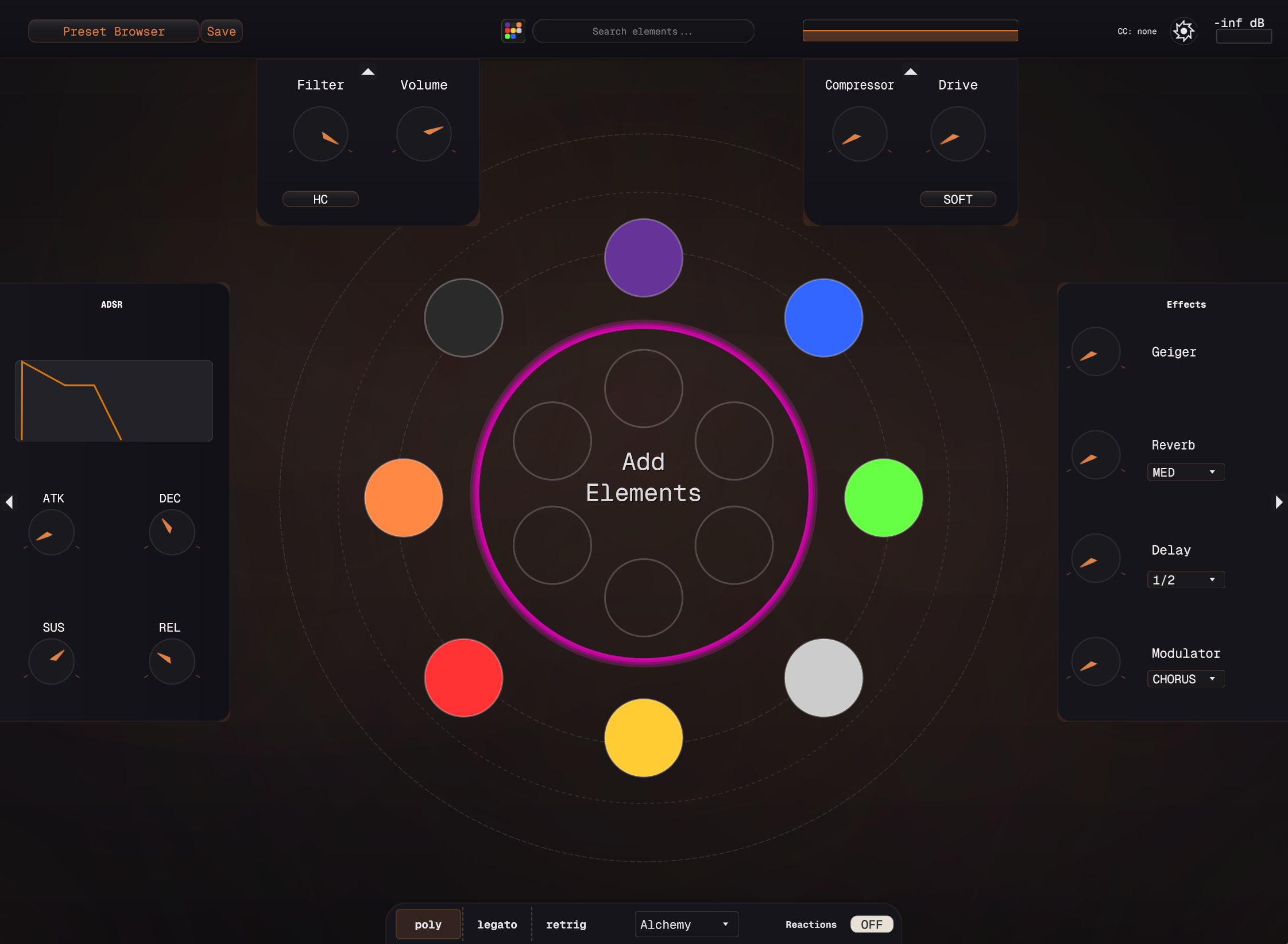
Top Bar
• Preset Browser: Save and load element combinations
• Search Bar: Quickly find elements by name or atomic number
• Settings: Global preferences and audio configuration
Element Ring (Center)
The main circular interface where you add and visualize up to 8 chemical elements. Each colored orb represents an active element contributing to the final sound.
Left Panel
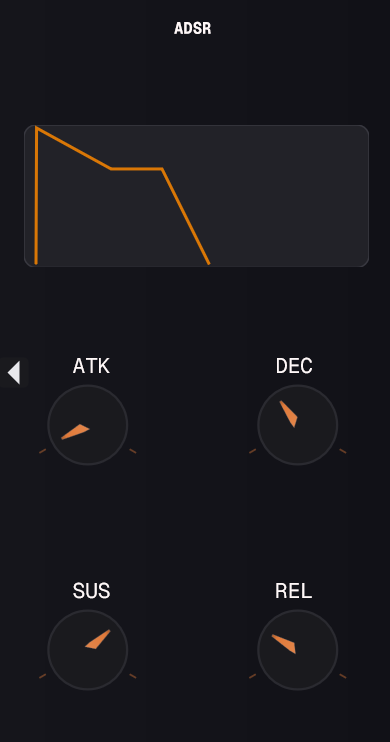
• ADSR Envelope: Visual graph and fader controls
• Filter & Volume: Classic synthesis controls
Right Panel
• Compressor & Drive: Dynamic control
• Effects: Geiger, Reverb, Delay, Modulator
Bottom Bar
• Voicing Modes: Poly, Legato, Retrig
• Reaction Toggle: Enable chemical interactions
Element System
Understanding Elements
All 118 elements from the periodic table are available as oscillators. Each element's atomic number, group, and period determine its sonic characteristics. Elements are organized into 8 color groups using Russell's Color System, each with distinct audio properties.
Element Properties
- • Base Waveform: Fundamental harmonic structure
- • Harmonic Series: Overtone relationships
- • Stability: How the waveform evolves over time
- • Reactivity: How it combines with other elements
Russell's 8 Color Groups
- • Purple: Alkali Metals — warm, resonant
- • Black: Alkaline Earth Metals — deep, foundational
- • Orange: Transition Metals — metallic, complex
- • Red: Radioactive/Heavy — dense, evolving
- • Yellow: Metalloids — balanced, adaptive
- • White: Non-Metals — pure, versatile
- • Green: Halogens — bright, sharp
- • Blue: Noble Gases — ethereal, stable
Russell's Color System — 8 Groups
Alchemy uses Russell's Color System to organize all 118 elements into 8 distinct color groups. Each group has unique sonic and harmonic properties that determine how elements sound and interact.
Purple: Alkali Metals (Li, Na, K, Rb, Cs)
Character: Warm, resonant, organic
Best for: Warm pads, soulful leads, vocal-like textures.
Black: Alkaline Earth Metals (Be, Mg, Ca, Sr, Ba)
Character: Deep, foundational, grounding
Best for: Sub-bass, low-end foundations, dark pads, anchoring layers.
Orange: Transition Metals (Cu, Au, Fe, Cr, Mn)
Character: Metallic, warm-bright, complex
Best for: Versatile synth leads, musical bell tones, hybrid bass. Highly reactive pairs.
Red: Radioactive & Heavy Elements (U, Ra, Po, Th, Pb)
Character: Dense, unstable, evolving
Best for: Deep bass, percussion, experimental textures. Use with Reactions ON for dramatic shifts.
Yellow: Metalloids & Semi-Metals (B, Si, Ge, As, Te)
Character: Balanced, adaptive, mid-spectrum
Best for: Versatile midrange patches, transitional textures, evolving sequences.
White: Non-Metals (H, C, N, O, P, S)
Character: Pure, versatile, fundamental
Best for: Foundation layers, clean tones, building blocks for any patch. Hydrogen (H) produces the purest sine wave.
Green: Halogens (F, Cl, Br, I)
Character: Bright, sharp, penetrating
Best for: Bright leads, percussive stabs, high-frequency shimmer. Use sparingly to add definition.
Blue: Noble Gases (He, Ne, Ar, Kr, Xe)
Character: Inert, ethereal, crystalline
Best for: Ambient textures, bell sounds, drone-like patches, tuning references.
Color Pairing Tips
- • Same Color: Elements of the same color blend naturally, creating unified tones
- • Complementary Colors: Purple + Green creates warm-bright contrast; Blue + Orange creates ethereal-metallic blend
- • Reactions: Colors affect reaction intensity—same-family elements react smoothly, cross-family creates dramatic shifts
- • Frequency Balance: Mix Purple (warm) with Green (bright) for full-spectrum presence
Selecting Elements
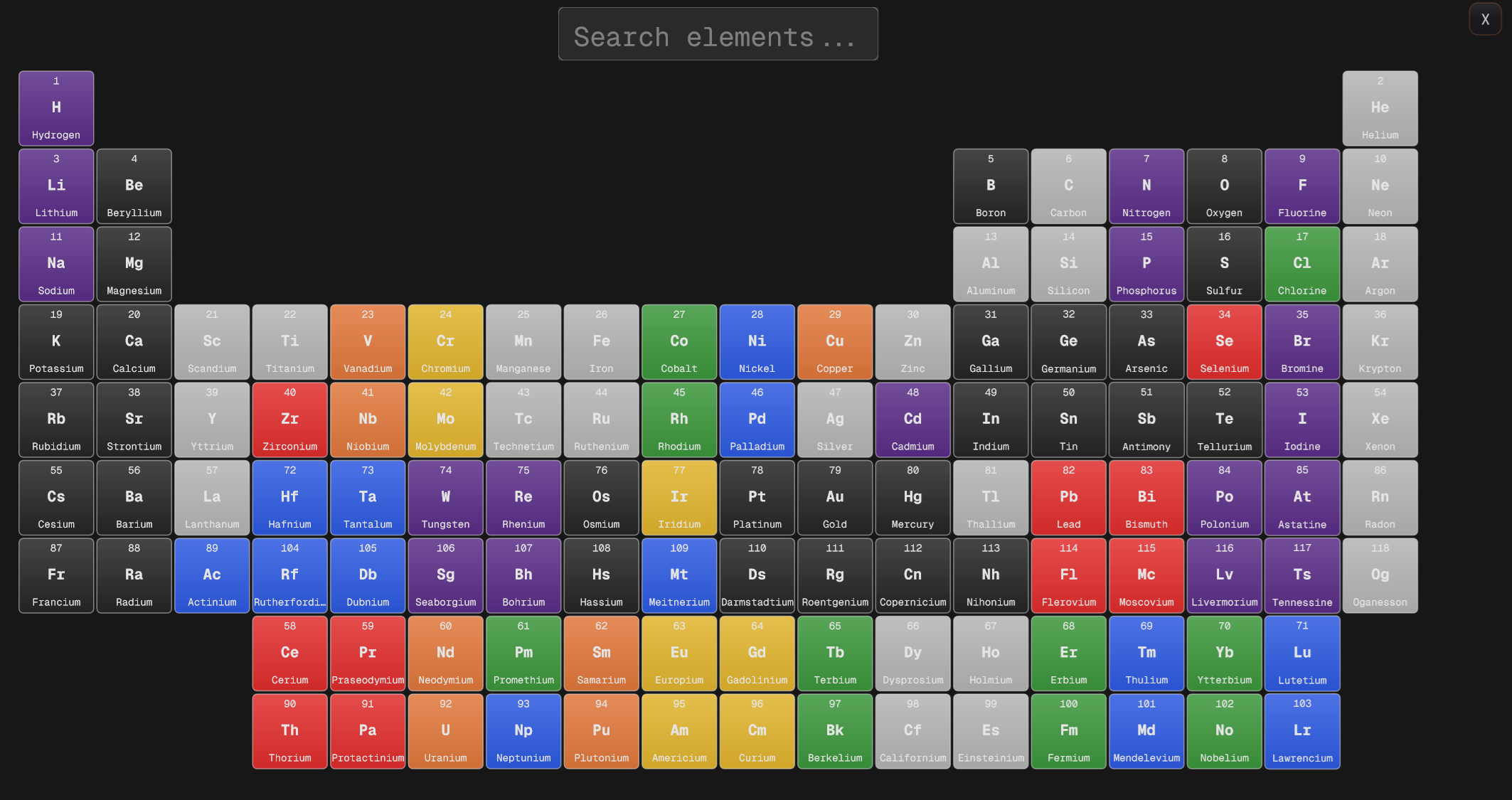
Method 1: Periodic Table Browser
Click an empty slot in the element ring to open the full periodic table. Elements are color-coded by category. Click any element to add it to your patch.
Method 2: Search
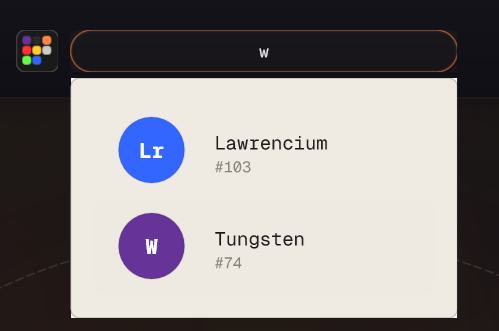
Use the search bar at the top to quickly find elements by name (e.g., "Gold"), symbol (e.g., "Au"), or atomic number (e.g., "79").
Method 3: Category Filter
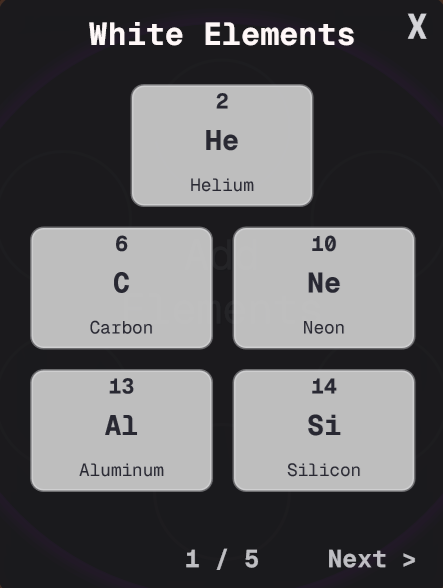
Browse by element category (Noble Gases, Alkali Metals, etc.) to find sonic families that work well together. Each category has distinct timbral characteristics.
Pro Tip
Elements from the same group (vertical column) blend well harmonically. Elements from the same period (horizontal row) create interesting contrasts.
Synthesis Engine
Synthesis Architecture
Alchemy's synthesis engine supports all 118 elements as independent oscillators. Active elements are summed together to create the final waveform. The synthesizer features 64-voice polyphony with professional-grade voice management and parameter smoothing.
Core Parameters
ADSR Envelope
Controls the amplitude envelope for all elements with Attack, Decay, Sustain, and Release faders, plus a visual graph display.
Filter Section
LP/HP/BP modes with cutoff and resonance. The filter shapes the combined output of all elements. High-cut (HC) mode removes harsh highs.
Volume & Drive
Master volume control and drive for adding saturation. Compressor helps tame dynamic range with soft/hard knee options.
CPU Usage
Adding more elements increases CPU usage. For optimal performance, use 3-5 elements per instance. Enable "Reactions" only when needed for creative effects.
Chemical Reactions
What Are Reactions?
Reactions are Alchemy's unique feature that simulates chemical interactions between elements. When enabled, elements don't just sum together—they interact based on their chemical properties, creating evolving harmonic relationships, phase modulation, and dynamic timbral shifts.
How It Works
When two or more elements are active with Reactions ON, the synthesis engine analyzes their atomic properties (electron configuration, electronegativity, atomic radius) and generates interaction behaviors. Highly reactive combinations (like alkali metals + halogens) create aggressive modulation, while stable combinations (noble gases) remain pure.
Reaction Types
Synthesis (Combination)
Elements merge harmonically, creating sum and difference frequencies. Example: H + O creates water-like evolving textures.
Decomposition
Unstable elements break down over time, creating decaying harmonic cascades. Great for percussive patches.
Displacement (Competition)
More reactive elements dominate, suppressing others. Creates morphing timbres that shift focus between elements.
Reaction Controls
Toggle the "Reactions" button in the bottom bar to enable/disable chemical interactions. When ON, you'll see visual indicators around the element ring showing which elements are reacting.
Intensity (coming soon)
Future update will allow controlling reaction strength from subtle to extreme.
Rate (coming soon)
Control how quickly reactions occur—from slow evolution to rapid modulation.
Experimentation Tip
Try pairing elements from opposite ends of the periodic table for dramatic reactions. Fluorine (F) + Cesium (Cs) creates explosive timbral shifts, while Helium (He) + Neon (Ne) stays stable and pure.
Effects
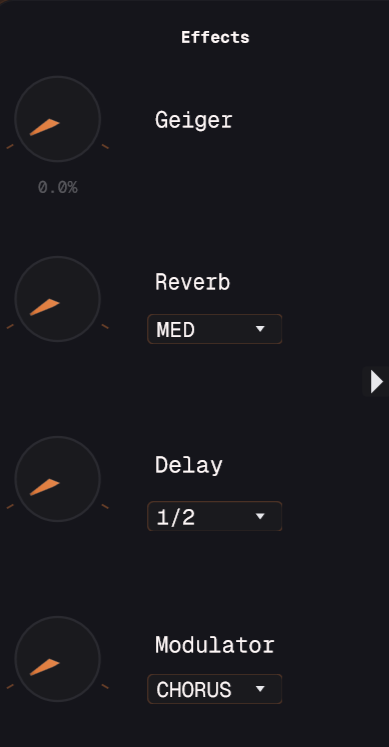
8-Stage DSP Effects Chain
Alchemy includes an 8-stage DSP effects chain. All effects run in series and can be combined for complex processing.
Drive
Adds saturation and harmonic distortion to the signal. Ranges from subtle warmth to aggressive overdrive.
Modulator
Multiple modulation types: CHORUS, FLANGER, PHASER, TREMOLO. Adds movement and width through LFO modulation.
Geiger (Radiation)
Adds random crackle and noise bursts inspired by Geiger counter radiation detection.
Volume
Master volume control for the overall output level.
Filter
LP/HP/BP modes with cutoff and resonance. Shapes the combined output of all elements.
Reverb
Algorithmic reverb with three room sizes: SMALL, MED, LARGE.
Delay
Tempo-synced delay with multiple subdivisions: 1/4, 1/8, 1/16, 1/2, 1/32, dotted/triplet variations. Feedback and mix controls available.
Compressor
Dynamic range control with soft/hard knee options. Tames peaks and adds punch.
Presets
Managing Presets
Alchemy includes a preset system for saving and recalling your element combinations and settings. All presets are saved in XML format with complete parameter states. Access the Preset Browser from the top-left corner of the interface.
Saving Presets
- 1. Create your element combination and adjust parameters
- 2. Click "Save" in the preset browser
- 3. Enter a descriptive name (e.g., "Metallic Lead" or "Noble Gas Pad")
- 4. Add tags for easy searching (optional)
- 5. Confirm to save to your library
Browsing Presets
Navigate through factory and user presets using the browser. Presets are organized by category:
- • Chemical: Patches showcasing element reactions and chemistry-themed sounds
- • Harmonious: Melodic and tonal patches
- • Waveforms: Pure waveform explorations and oscillator showcases
- • Words: Vocal-like and speech-inspired textures
Factory Presets
Alchemy ships with 50+ factory presets including:
Single Element
Pure tones showcasing individual elements
Compound
Multi-element combinations
Reactive
Patches with reactions enabled
Processed
Heavy effects chains
Preset Location
User presets are stored in:Documents/Paraflex Audio/Alchemy/Presets/
MIDI Control
MIDI Implementation
Alchemy responds to standard MIDI messages and supports MIDI CC mapping for hands-on control.
Supported MIDI Messages
MIDI Learn
Map any MIDI CC to any parameter with visual feedback.
Voicing Modes
Polyphonic (Poly)
Up to 64 voices of polyphony. Each note is independent.
Mono Legato
Monophonic mode. New notes don't retrigger envelopes when playing legato.
Mono Retrigger
Monophonic mode. Envelopes retrigger on every new note.
MPE Support (Coming Soon)
Future update will include MPE (MIDI Polyphonic Expression) for per-note control of pitch, timbre, and pressure.
Advanced Features
Settings & Configuration
Audio Settings
Sample Rate
Inherited from DAW (44.1-192 kHz supported)
Buffer Size
Automatic latency compensation
Performance Optimization
- • Reduce the number of active elements for lower CPU load
- • Disable reactions when not needed
- • Use lighter effects (bypass unused DSP stages)
- • Freeze tracks when bouncing to audio
- • Increase buffer size in DAW if experiencing dropouts
Automation
All parameters are automatable in your DAW. This includes element selection (you can automate which elements are active), ADSR controls, filter settings, and effect parameters.
Pro Technique: Automate the Reactions toggle to switch between static and evolving timbres within a single note or phrase.
Troubleshooting
No sound output
- • Ensure at least one element is loaded
- • Check master volume is not at zero
- • Verify MIDI notes are being received (check DAW MIDI monitoring)
- • Confirm filter cutoff is not completely closed
Crackling or distortion
- • Reduce number of active elements
- • Lower master volume or enable compressor
- • Increase buffer size in DAW settings
Preset not loading
- • Check preset file permissions
- • Verify preset folder location hasn't changed
- • Re-scan preset library from settings
- • Contact support if corruption suspected